
FeatureGate renders its children when allowed is true and fallback when it is false.
When to use
- Around a feature that only some plans include, such as SSO settings or exports.
- Around a menu item or button that leads to such a feature.
- When the entitlement decision is still loading and you want nothing to show until it arrives.
- Light
- Dark
- Minimal
- Neobrutal
- Nozle
- Nozle Dark
Importing FeatureGate
Rendering FeatureGate
FeatureGate has no look of its own and fetches nothing: you pass the entitlement decision.
components/sso-settings.tsx
Data
The gate needs one boolean,allowed, and optionally loading while you read it.
Live data
useEntitlement(featureCode) returns the customer’s can() result through your billingEndpoint:
Examples
Upgrade prompt as fallback
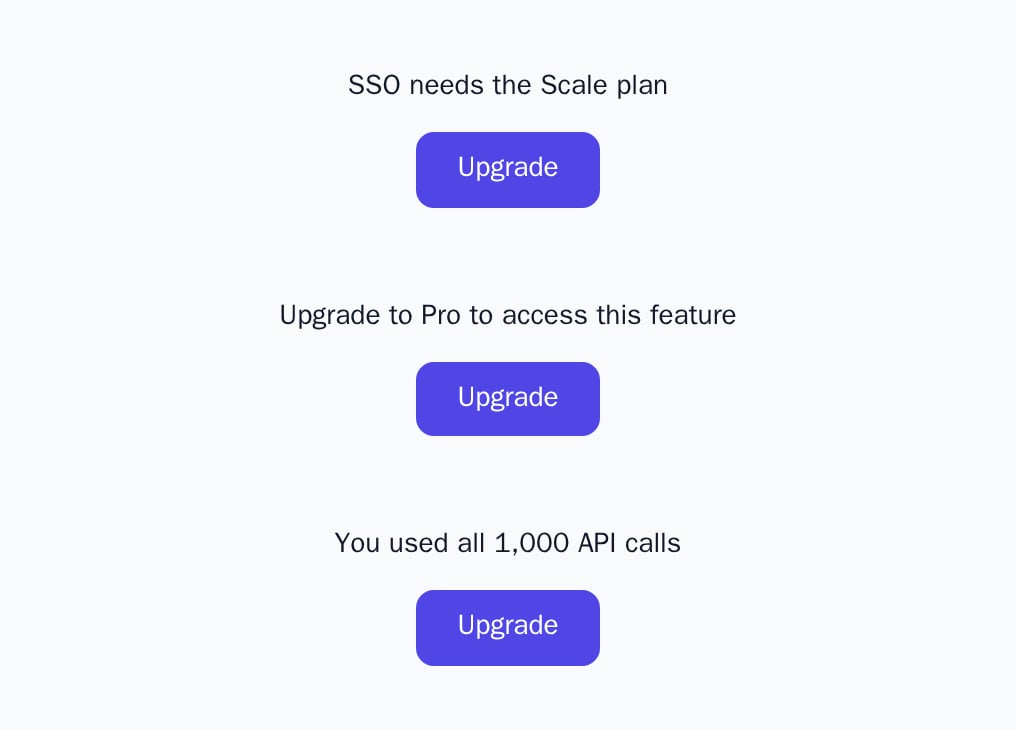
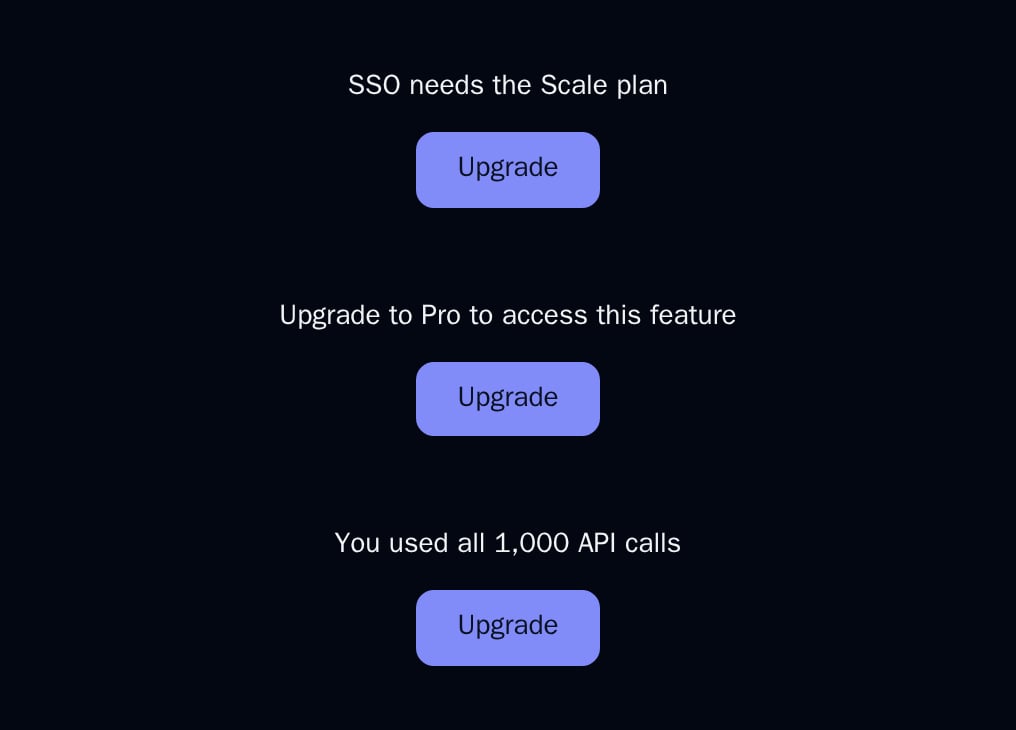
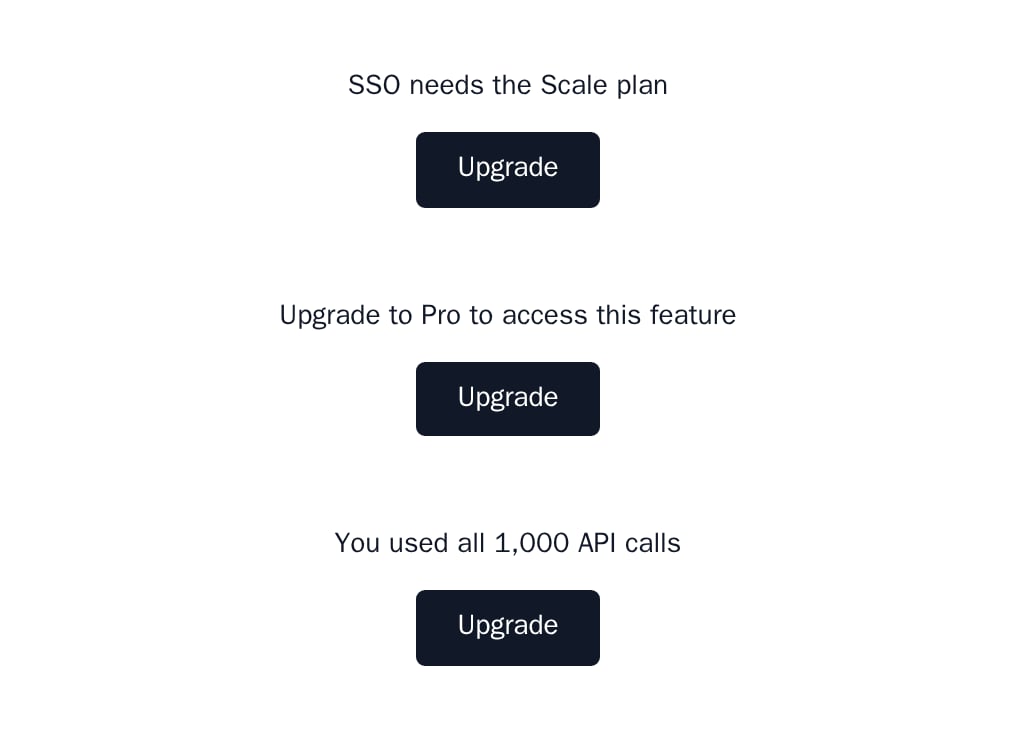
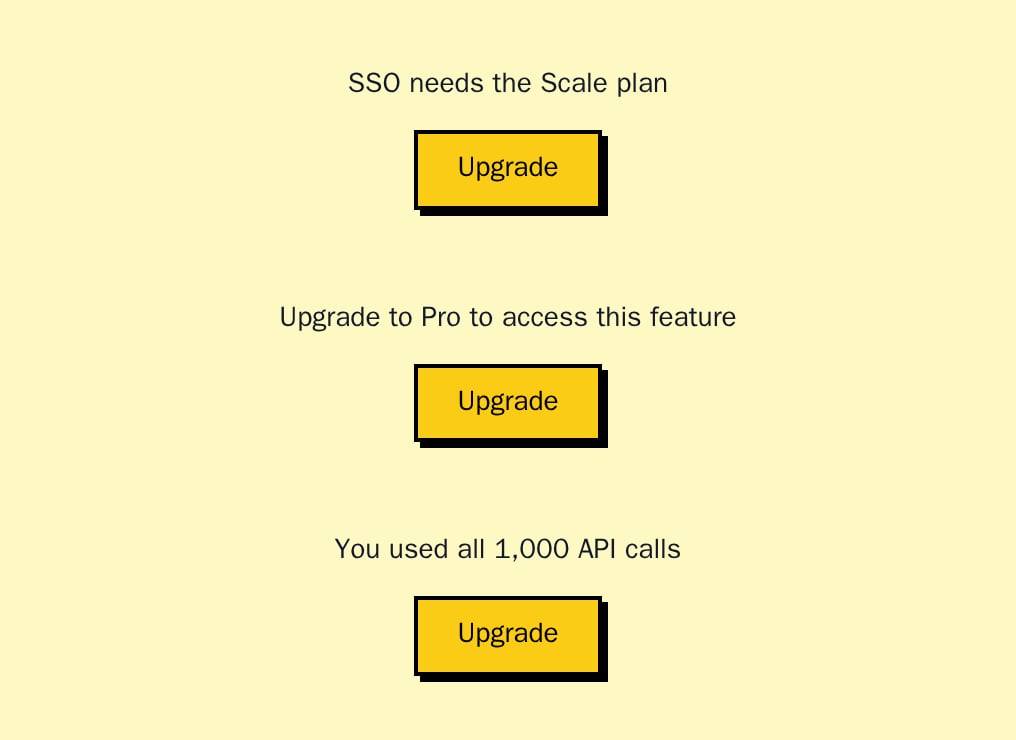
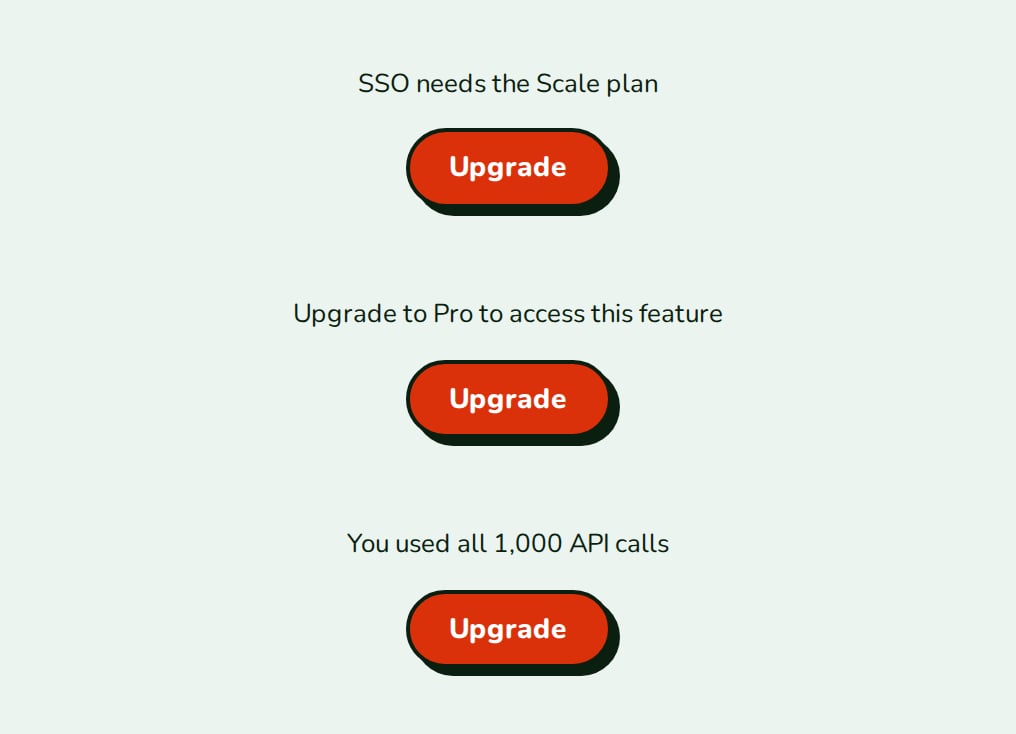
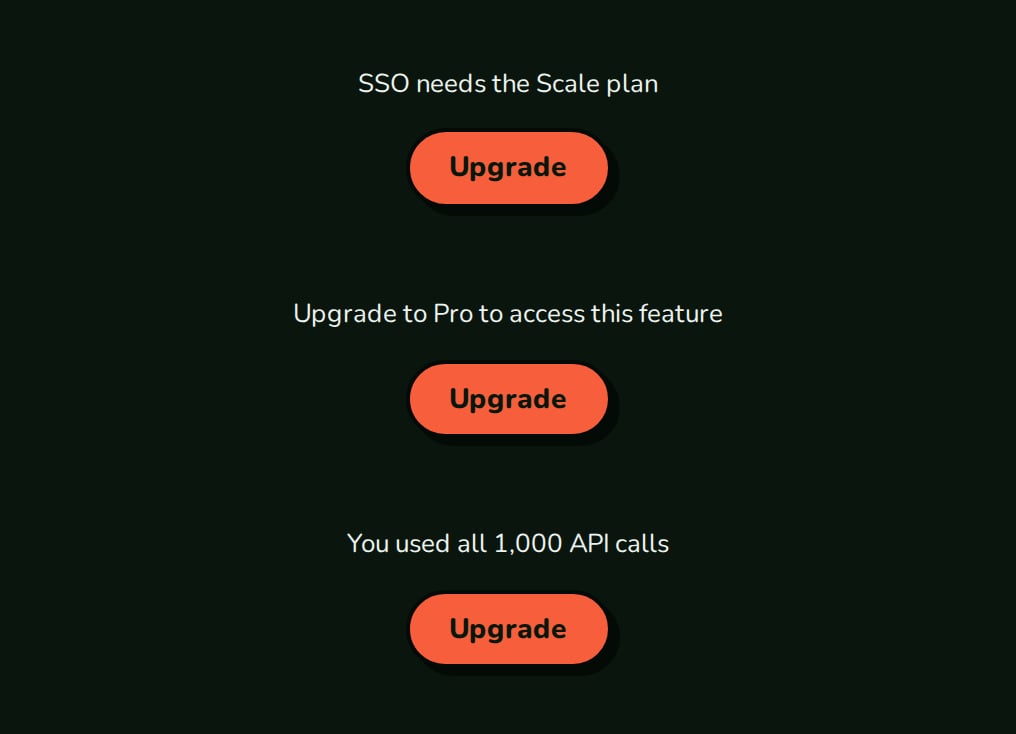
AnUpgradePrompt is the usual fallback. The screenshot shows the fallbacks of FeatureGate, PlanGate and UsageGate, each an UpgradePrompt.
While the decision loads
Withloading, the gate renders nothing, so the fallback does not flash before the decision arrives.
API reference
boolean
required
true renders children; false renders fallback.ReactNode
required
The protected content.
ReactNode
default:null
Rendered when
allowed is false.boolean
default:false
Renders nothing while true, so the fallback does not flash before the decision arrives.
States
Appearance
FeatureGate takes no appearance and has no element keys; style the fallback you pass.
Related
PlanGate
Gate by plan code.
UsageGate
Gate by usage and limit.
LockedOverlay
Show a blurred preview instead of hiding.
Feature gates
Combining gates with backend state.