
UsageGate renders its children while usage is below limit, and fallback once usage reaches it.
When to use
- Around a “Create” button for something with a monthly cap.
- Around an API console or generator that consumes a metered feature.
- When reaching the limit counts as used up (
usage >= limit) and you want a fallback for that state.
- Light
- Dark
- Minimal
- Neobrutal
- Nozle
- Nozle Dark
Importing UsageGate
Rendering UsageGate
UsageGate has no look of its own and fetches nothing: you pass the usage and the limit.
components/new-project.tsx
Data
The gate needs two numbers:usage so far and limit. It has no loading state.
Live data
useEntitlement(featureCode) returns used and limit. A null limit means unlimited, so skip the gate then:
Examples
Upgrade prompt as fallback
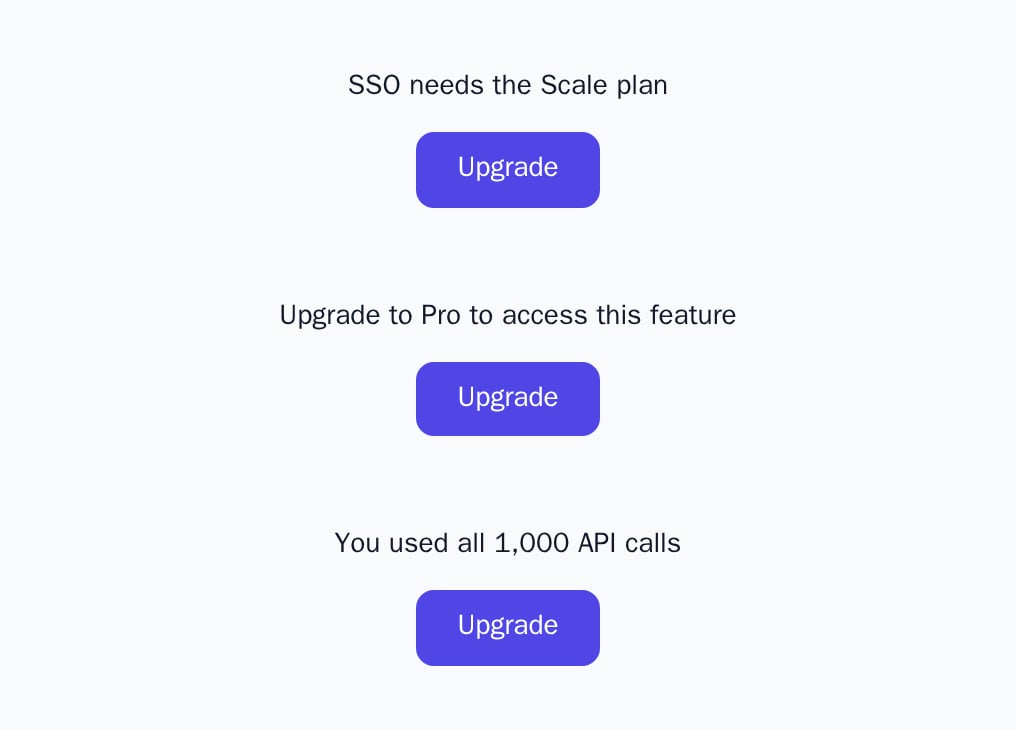
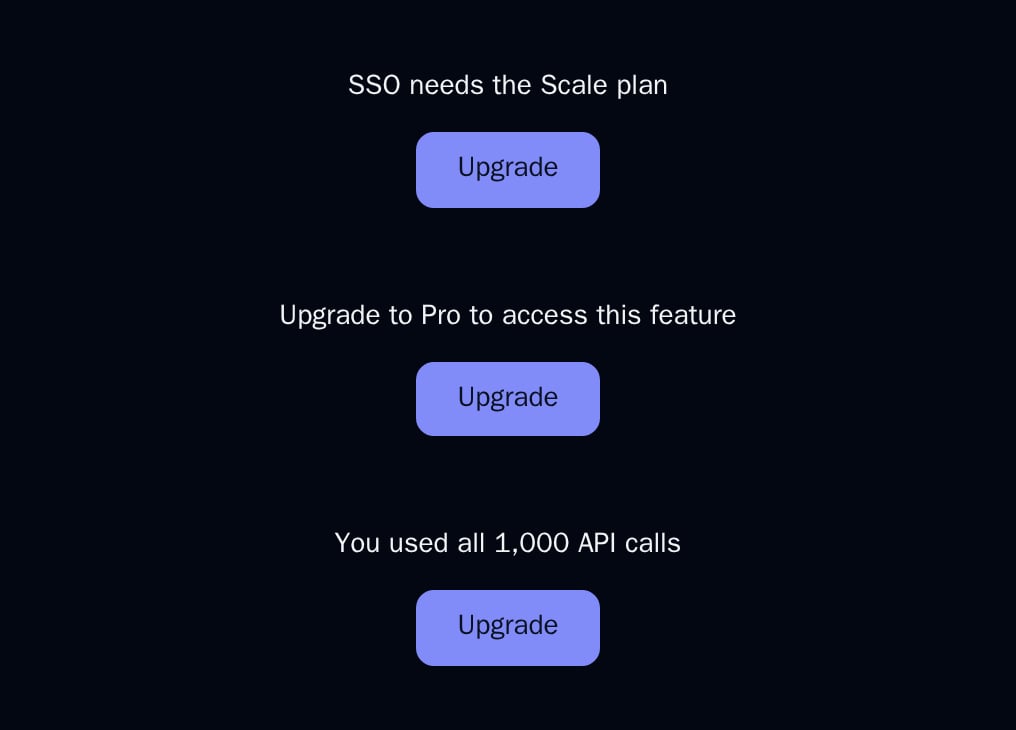
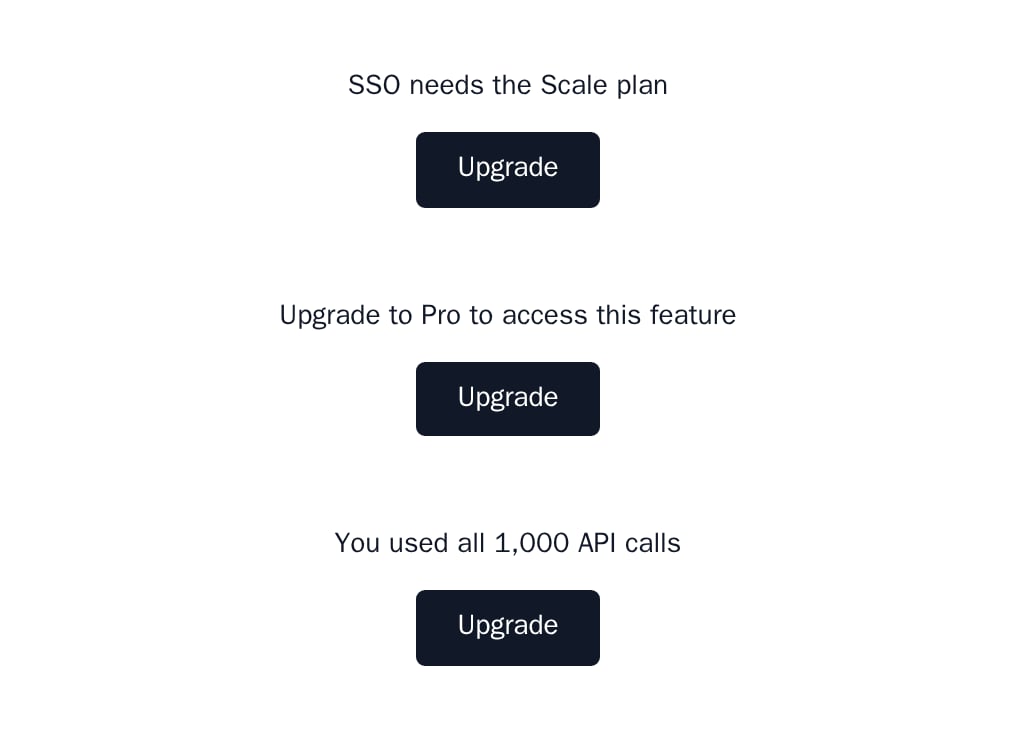
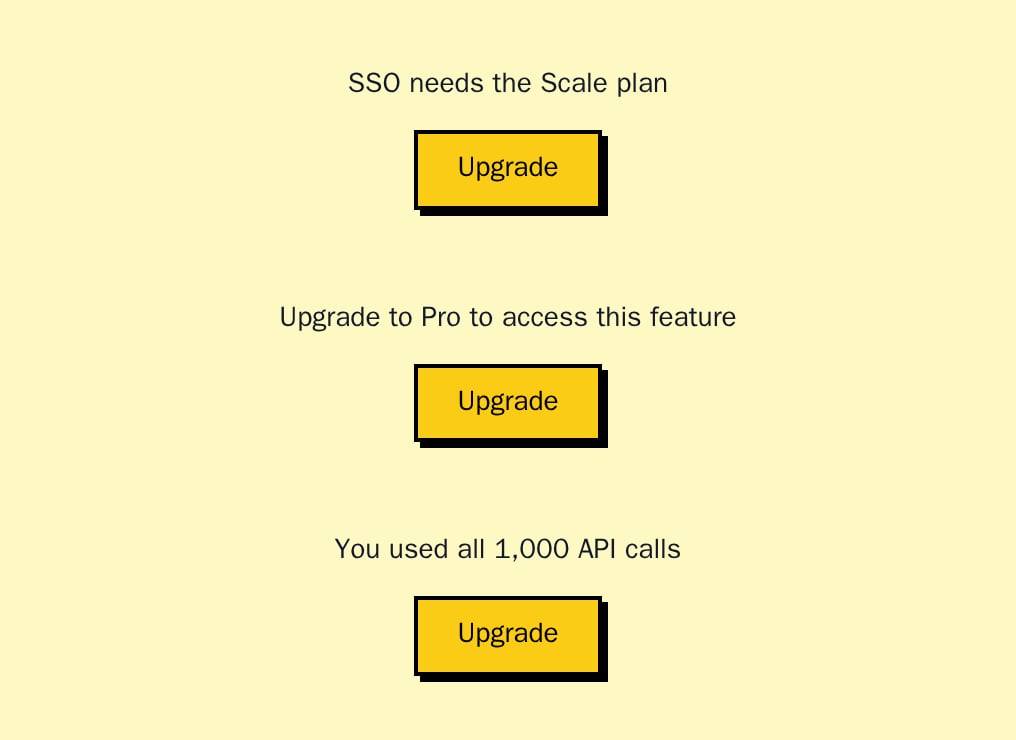
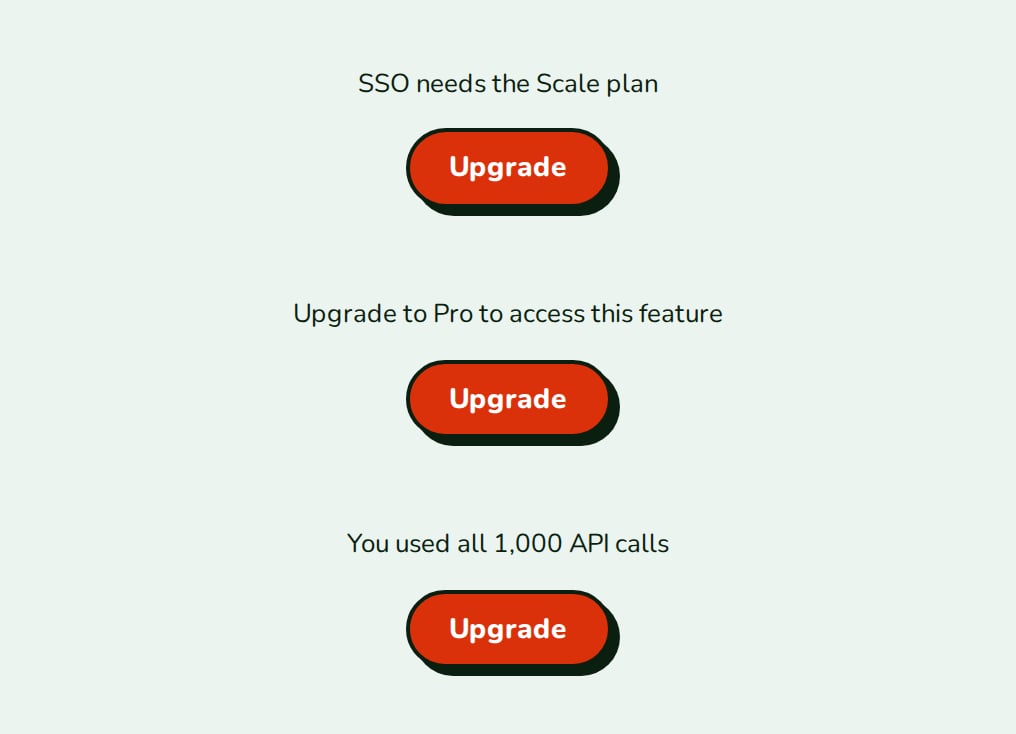
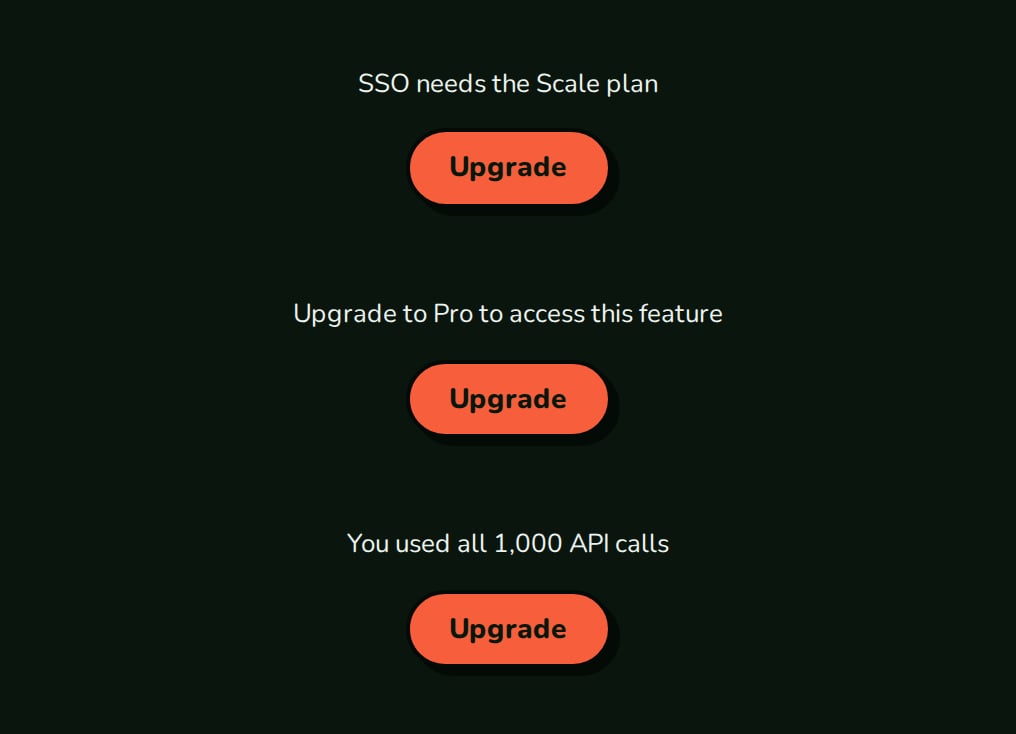
At or above the limit the fallback renders, usually anUpgradePrompt. The screenshot shows the fallbacks of FeatureGate, PlanGate and UsageGate, each an UpgradePrompt.
API reference
number
required
The usage so far.
number
required
The limit. At or above it,
fallback renders.ReactNode
required
The content available below the limit.
ReactNode
default:null
Rendered when
usage >= limit.States
UsageGate has no loading state.
Appearance
UsageGate takes no appearance and has no element keys; style the fallback you pass.
Related
UsageMeter
Show how close the limit is.
UsageAlert
Warn before the limit.