
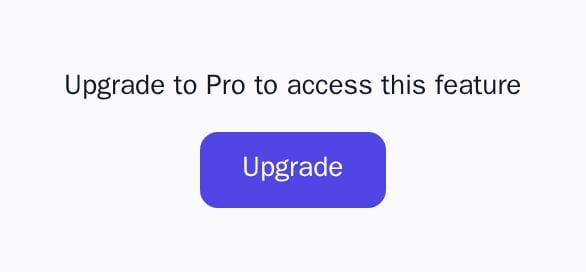
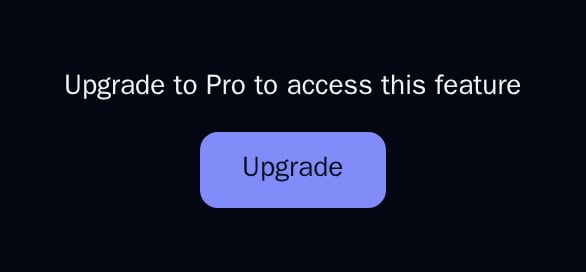
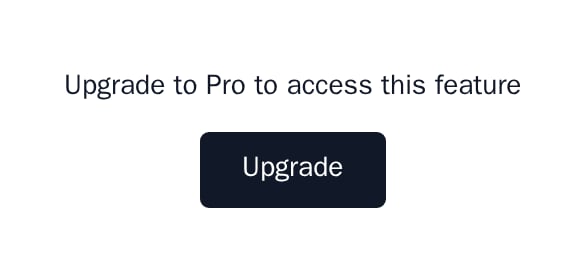
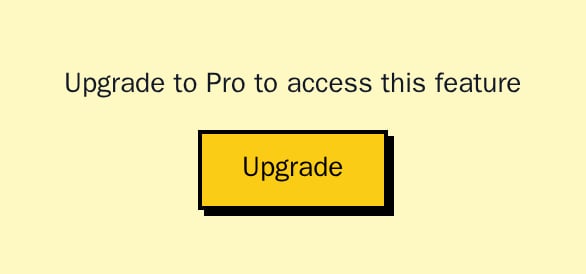
UpgradePrompt shows a centered message and an “Upgrade” button.
When to use
- As
fallbackofFeatureGate,PlanGateorUsageGate. - In an empty state of a feature the customer’s plan does not include.
- Over blurred content: it is the panel of
LockedOverlay.
- Light
- Dark
- Minimal
- Neobrutal
- Nozle
- Nozle Dark
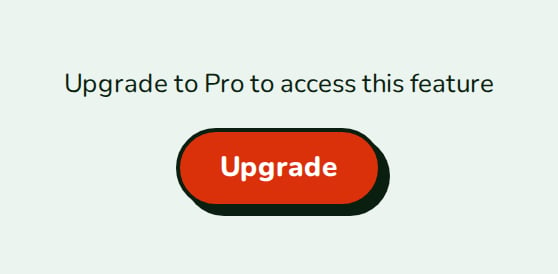
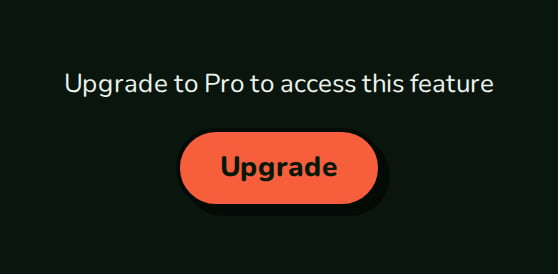
Importing UpgradePrompt
Rendering UpgradePrompt
Pass a plan name and open your plans fromonUpgrade. The prompt fetches nothing and shows what you pass.
components/sso-upsell.tsx
What a click does
WithonUpgrade, a click calls it and nothing else. Without it, the button sets window.location.href to /upgrade.
Examples
Plan name
planName shows “Upgrade to <planName> to access this feature”.
Your own text
WithoutplanName, text is the message.
Open an upgrade modal
Open your plan change flow fromonUpgrade, for example an UpgradeModal:
API reference
string
Shows “Upgrade to <planName> to access this feature”. Takes priority over
text.string
default:"Upgrade to access this feature"
The message when
planName is not set.() => void
Fires when “Upgrade” is clicked. Defaults to opening
/upgrade: without it the button sets window.location.href to /upgrade.Appearance
Theme, variables and element overrides on top of the provider’s. See Appearance.
States
UpgradePrompt has one state: the message and the “Upgrade” button.
Appearance
Element keys
Element keys
upgradePrompt (root).Style them with appearance.elements. See Elements.Related
LockedOverlay
This prompt over blurred content.
FeatureGate
Shows it when a feature is not included.